Last updated: August 11, 2026
Quick Answer: 3 checks are usually enough to catch a phishing email before you click anything: verify the sender, inspect the destination, and confirm the request another way. For the shortest safe answer on how to spot phishing email before you click anything, trust the destination and the request — not the message itself. Any email that asks you to log in, pay, reset a password, approve a transfer, or open an attachment gets my side-eye until I confirm it elsewhere. Phishing messages tend to trip over tiny, checkable details first. Not the big dramatic stuff.
Key facts
- A phishing email can look polished and still be fake.
- The sender name alone proves nothing.
- A padlock or HTTPS does not make a link trustworthy.
- If the request is urgent, verify it outside the email.
- When you were not expecting the action, stop before you click.
What I Check First When an Email Feels Off
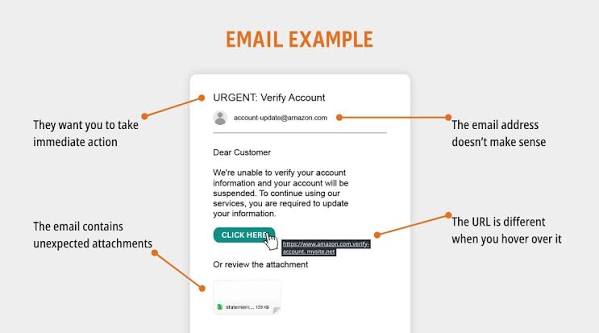
When an email wants speed, I slow down. Simple. Phishing leans hard on pressure: “urgent,” “account suspended,” “invoice attached,” “security alert,” “final notice.” Feeling pushed is the point; it narrows your attention and makes the bait easier to swallow.
The sender is where I start, though I do not stop there. A display name can say “Microsoft Support” while the real address comes from some unrelated domain. Looks can lie. And even when the name seems right, I still ask whether the wording matches how that organization usually contacts me; when it does not, I avoid clicking anything inside the message.
Then I read the request itself. The moment an email says “verify your account,” “confirm payment,” “review the document,” or “see the shared file,” I ask whether I was expecting that action. When the answer is no, I treat it as suspicious until I can confirm it through a trusted channel, and I would consider checking with a professional or your IT team if the message affects money, access, or work systems.
My rule is straightforward: when the email creates urgency and asks for a click, it needs independent verification. That means opening a new browser tab and going to the company’s site directly, calling a known number, or messaging the sender through a channel I already trust. I do not use the links or phone numbers in the suspicious email. Ever.
A lot of generic advice stops at “check for typos.” That is too shallow. Real phishing often looks polished. The real tell is the mismatch between the request, the timing, and the route you are being steered toward — that trio is where the wheels come off.
Quick check: are you being rushed into clicking, paying, signing in, or opening a file you were not expecting?
The 3 Checks That Catch Most Phishing Emails
When you only have a few seconds, check these three things in this order: sender, link target, and request context. Any one of them feeling wrong is enough reason to pause.
| Situation | Best Path | Why Other Options Fail |
|---|---|---|
| The sender name looks familiar, but the address looks strange | Inspect the full address and compare it with past legitimate emails | Names are easy to fake; the visible name alone proves nothing |
| The email includes a link to “sign in” or “view document” | Hover first, or long-press on mobile, and inspect the destination before opening | Fake links often hide behind text that looks safe |
| The message asks for money, credentials, codes, or approval | Verify through a separate channel you already trust | Replying inside the same thread can keep you inside the attack |
| You are not expecting any action from this organization today | Assume the email is suspicious until you confirm it independently | Unexpected urgency is one of the most common phishing tools |
On a desktop, hover before you click. On mobile, press and hold the link to preview it first. If the visible text says one thing and the address points somewhere else, that is a major warning sign. When the preview is messy, shortened, or unrelated to the claimed sender, do not tap it.
I also watch the small stuff: generic greetings, odd punctuation, and language that feels slightly translated. But grammar alone is a flimsy test. Good phishing can read cleanly, and clumsy legitimate email exists too. The link and the request matter more than the commas.
Quick check: does the sender, the link target, or the request itself fail your sanity check?
If the Email Claims to Be From Your Bank, Employer, or Delivery Service
When a trusted brand shows up in the inbox, I assume the name may be fake until I verify it. Harsh? Maybe. Still safer than trying to “read the vibes.” Bank and employer impersonation is common because those messages trigger fear and compliance.
For a bank or payment app, I never click the email. I open the app or type the official website address myself. If there is a real alert, it will appear after login. Even if the email says there is fraud on my account, I still use the normal app or website path. I never follow a link that tells me to “log in to view the issue.”
With an employer, I check whether the message came from the company’s usual systems and whether it follows normal process. A request to buy gift cards, change payroll details, or reset a password through email is a classic scam. If I work there, I would verify through the known internal directory, manager, or IT help desk channel, not by replying in the same thread.
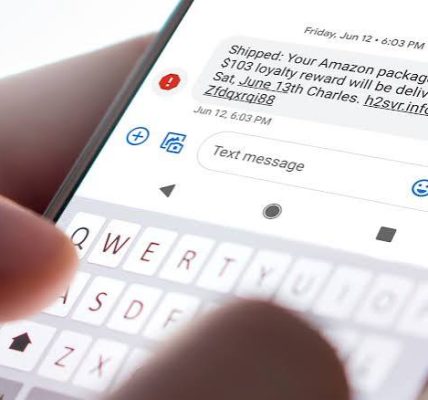
Delivery scams are sneaky because they feed on routine. So I check the context before reacting. If I am not waiting for anything, I treat “failed delivery” and “customs fee” emails as suspicious. If I am expecting a package, I still go directly to the carrier’s site and enter the tracking number myself. No shortcuts. That shortcut is where the trap lives.
If the email comes from a service I use often, it can feel convincing. That is exactly why it works. Familiarity lowers caution. I try to flip that reflex and ask one question: would this organization normally force me through an email link for this task? When the answer is no, I stop. When I am unsure, I would check with a professional or the organization’s support team before acting.
For a practical source on email and account security basics, I would point readers to CISA’s guidance on phishing and suspicious emails and the FTC’s advice on spotting phishing. Those organizations publish consumer-focused material that is worth keeping nearby:
- CISA: https://www.cisa.gov/topics/cyber-threats-and-advisories/phishing
- FTC: https://consumer.ftc.gov/articles/how-recognize-and-avoid-phishing-scams
Quick check: is the email pretending to be a bank, boss, shipper, or platform that should already have a normal app or website?
The Link Tests I Use Before I Click Anything

A button, a short link, or a “secure document” link is usually the riskiest part. That is where phishing often hides.
First, I look at the actual domain. When the text says one company name but the destination points to a different domain, I stop. Misspellings are obvious, yes, but lookalikes, extra words, and odd endings are common too. A link can be technically valid and still belong to an attacker.
Second, I check whether the URL hides the real destination behind a long string of tracking characters, a URL shortener, or a file-sharing redirect. Those are not automatically malicious, but they reduce transparency. When I cannot tell where the click goes, I do not click.
Third, I ask whether the page I expect should require me to sign in again. Phishing often uses fake login pages that appear after a link. When I already have a session open in my browser or app, and the email still wants me to log in from scratch, I get cautious fast.
Here is the step-by-step path I would use:
- Do not click the link or button in the email.
- Hover over the link on desktop, or long-press on mobile, to preview the destination.
- Compare the visible domain with the organization’s real domain.
- If the destination is unfamiliar, open a separate browser window and type the official site address yourself.
- Search for the needed page inside the official site or app rather than using the email link.
- If the email claims a document was shared, confirm through the known platform directly, not through the email.
A generic article often says “look for HTTPS.” That is outdated as a standalone test. Phishing sites can use HTTPS too. A padlock does not make a site trustworthy. The destination and the context still matter more.
When the link is a “reply-to-view” document, I would be extra careful. Attackers like file-sharing lures because they look ordinary and create curiosity. If the message says “Document shared with you” but you were not expecting any file, that is enough reason to stop. Classic bait-and-switch.
Quick check: can you name the exact domain the click would open, without trusting the button text?
If You Already Opened the Email, But You Haven’t Clicked Yet
When you have opened the email but not clicked anything, you are still in a decent position. The goal now is to keep curiosity from becoming a compromise.
First, do not reply. Replying confirms the address is active and can invite more pressure. Do not forward it to a bunch of people either. If you need help, send the message to your IT team or security contact through the proper channel.
Second, do not download attachments “just to see.” A malicious attachment can be harmful even before you open it fully, especially if it is a file type that asks for macros, external content, or a login. When the attachment is unexpected, I would avoid opening it until I can verify the sender out of band.
Third, report it if your organization has a phishing button or reporting tool. Many email systems provide a one-click report option. When you do not have that, move the message to spam or junk after you verify it is malicious. On personal email, I would still mark it as phishing or spam to help train the provider’s filters.
Here is the path I would use when I am unsure:
- Stop reading the email as if it deserves trust.
- Do not click links, open attachments, or reply.
- Verify the request by going directly to the official website or app.
- If it concerns money, password changes, or account access, contact the organization through a known number or support page.
- Report the email through your mail client or security team.
- If you think you may have entered credentials already, change the password immediately from the official site and alert your provider or IT team.
One honest limitation: phishing advice cannot guarantee safety if the attacker already has your password, access token, or device. This guide is for catching the email before a click turns into a breach. When you already typed anything, the response changes.
Quick check: have you only opened the message, or have you already interacted with it in some way?
Edge Cases Where the Usual Advice Breaks Down
When the email is from a real person whose account was compromised, then the sender may be legitimate and the message may still be dangerous. The name and address can look right while the content is off. So the move is simple: verify the request with that person through another channel, especially when it asks for money, credentials, or file access.
Shared inboxes and mailing lists are another wrinkle. Replying to confirm can be messy and misleading. The visible sender may not be the true source. Instead, check the original mailing system, the list admin, or the official site directly.
A password reset you requested yourself is different. Urgency is not automatically a scam there. Timing and source are what matter. Only trust the reset if you initiated it, and only use the reset flow from the app or site you opened yourself.
When the email has no links at all and only contains a phone number, the danger moves off-screen. The attacker wants a call, not a click. Look up the organization’s official number independently and call that one, not the number in the message.
On a work device with security tools, the process may include auto-quarantine, banner warnings, or a report-phish button. Your company may want the email preserved for review. Report it first, do not delete it unless your policy says to, and let the security team handle it.
A cloud document platform you really use can still be abused. The lure may be a fake shared file inside a real service name. The platform name alone is not enough. Open the platform directly and inspect recent shares there.
Quick check: does your situation involve a compromised sender, a phone call, a real password reset, or a work security process?
What I Would Do in the Last 60 Seconds Before Clicking
When I am still unsure after the sender and link checks, I use the last minute to force a cleaner decision. Four questions help:
- Did I expect this exact request today?
- Can I verify it without using anything inside the email?
- Is the sender asking for speed, secrecy, money, or login credentials?
- Would this task normally be done by email at all?
When any answer feels off, I do not click. I close the message and go straight to the official site or app. That is slower by a minute and faster than recovering a compromised account.
A good phishing habit is not paranoia. It is refusing to let the email steer the route. I pick the path myself.
Quick check: if you had to prove this email is real without clicking anything in it, could you do it?
FAQ
What is the single biggest red flag in a phishing email?
A request that creates urgency and demands a click, login, payment, or attachment before you have time to verify it independently. CISA recommends verifying through a separate, trusted channel before acting.