Last updated: August 11, 2026
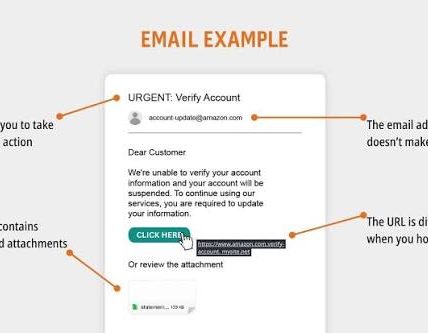
Quick Answer: If you clicked a phishing link, do 3 things in the first 10 minutes: disconnect if you downloaded anything, change the affected password from a clean device, and check account activity. The specific response for what to do after you clicked a phishing link depends on whether you typed a password, entered a code, approved a login, or opened a file.
Key Facts
- If you only clicked and closed the page, the risk is usually lower, but not zero.
- If you entered a password or MFA code, treat it as an account-security incident.
- If you downloaded or opened a file, the device may be the main problem.
- If the account is email or a password manager, secure it first because it can unlock other accounts.
- If the device is work-owned, report it before wiping or repairing anything.
If you clicked a phishing link, the next few minutes matter more than the embarrassment. The right move for what to do after you clicked a phishing link depends on what happened after the click: did you type a password, download a file, approve a login, or just land on a fake page and close it? I’m going to give you the exact order I would use so you can stop the damage, check what changed, and decide who needs to know.
The First 10 Minutes: Stop the Bleeding
If you only clicked the link and did nothing else, your job is narrower than people think. If you entered a password, gave a code, or downloaded anything, the response gets more urgent.
Start with this basic triage:
- Disconnect the device from the network if you suspect a download, malware, or remote-control prompt.
- Do not click the link again, and do not reply to the sender.
- Change the password for the affected account from a clean device, not the one you clicked on if you suspect compromise.
- Turn on multi-factor authentication if the account supports it and it is not already active.
- Sign out of all other sessions from the account security page, if that option exists.
- Check for forwarded mail rules, recovery email changes, and new devices or logins.
If this was a work account, report it immediately to your security or IT team. If this was personal email, start there too, because email is often the key that unlocks banking, shopping, and password resets everywhere else.
If you clicked a link but never entered credentials, the risk is often lower, not zero. Some phishing pages try to drop tracking cookies, harvest device data, or steer you to a second-stage page. That’s why I still recommend checking the device for anything it downloaded or installed.
Do not waste time on shame. Phishing works because it catches distracted people. The useful question is not “How did I fall for it?” It’s “What account or device could this have touched?”
Quick check: if you changed a password, entered a code, downloaded a file, or approved a sign-in, you need the stronger response path below.
What Actually Determines the Right Response

If you want the right next step, I need four facts: what you clicked, what you gave away, what device you used, and whether the account is work-managed or personal. That determines whether this is a password reset problem, an account takeover problem, or a device-cleanup problem.
Here’s the decision table I would use:
| Situation | Best Path | Why Other Options Fail |
|---|---|---|
| Clicked link, closed page, entered nothing | Change nothing yet except watch the account, then inspect for suspicious logins | A full panic reset may not be necessary, but doing nothing is risky if the page captured a session or device info; if you are unsure, consult your security team or a trusted professional |
| Entered password only | Change the password immediately from a clean device, sign out of all sessions, enable MFA | Waiting gives the attacker time to use the stolen password; changing it on a compromised device can be pointless |
| Entered password plus MFA code | Treat as likely account compromise; rotate passwords on related accounts and check recovery settings | MFA code theft can be enough for a live sign-in, so a password change alone may not stop access |
| Downloaded or opened a file | Disconnect from network, scan the device, and involve IT or a trusted security pro if the device matters to work or money | Password changes do not clean malware |
| Approved a push login or one-time prompt you didn’t expect | Revoke sessions, change credentials, and look for a malicious app or device enrollment | Attackers often use prompt fatigue or social engineering to stay signed in |
| Used a work device | Report it and follow your company incident process before making changes that could erase evidence | Well-meaning cleanup can destroy logs your security team needs |
If you are on a work machine, the company may want evidence first. If you are on a personal device and the account is high value, speed matters more than preserving traces. That is the trade-off.
Quick check: if you can answer “I typed X on Y device into Z account,” you can choose the right branch instead of doing random cleanup.
If You Entered a Password or Code, Do This Next
If you typed a password, a verification code, or a one-time login prompt, assume the attacker may be in or may try to get in soon. If the account is email, cloud storage, banking, or a password manager, move faster.
I would follow this path:
- Use a known-clean device to open the real website or official app, not the link in the message.
- Change the password immediately.
- Review account recovery methods, including backup email, phone number, and security questions.
- Sign out of all sessions and remove devices you do not recognize.
- Check for mailbox forwarding rules, filters, delegated access, and connected apps.
- Review recent activity, login history, and security alerts.
- Change passwords on any other account that reused the same password.
- Watch for password-reset emails or account lockouts over the next day or two.
The reason I put email first is simple: email often acts like the master key. If an attacker gets into your inbox, they can reset passwords for shopping, banking, social media, and work tools. The Federal Trade Commission has plain-language guidance on what to do if your account is compromised, and CISA has phishing advice for reporting and response:
- FTC: https://consumer.ftc.gov/articles/what-do-if-you-were-phished
- CISA: https://www.cisa.gov/topics/cyber-threats-and-advisories/phishing
If the phishing page asked for your bank login, I would also check recent transactions and alerts right away. If it asked for your work credentials, I would assume the account could be used for internal phishing against coworkers.
One honest limitation: changing the password helps only if the attacker has not already created another path back in. That is why I keep saying to check recovery emails, forwarding rules, and trusted devices. Those are the doors people forget.
Quick check: if you typed a password or code, this is no longer “maybe” territory. Treat it like a live account-security incident, and if you are unsure what was exposed, consult a professional.
If You Downloaded, Opened, or Installed Something

If the link led to a file download, a document, or an installer, the question changes. The biggest risk is no longer just stolen credentials; it may be malware, a malicious browser extension, or a fake remote-support tool.
If you downloaded a file but did not open it, the risk is lower, though you should still delete it and scan the device. If you opened a file, enabled macros, installed software, or allowed a browser notification, I would act as if the device may be compromised.
Use this path:
- Disconnect the device from Wi‑Fi and unplug Ethernet if you suspect active malware.
- Do not sign into banking, email, or password managers on that device until it is checked.
- Run a scan with your built-in security tool: Microsoft Defender on Windows, XProtect on macOS, or the security tool your organization requires.
- Check installed apps, browser extensions, startup items, and recent downloads for anything unfamiliar.
- Remove anything you did not intentionally install.
- From a clean device, change passwords for important accounts if you used that machine to log in after the click.
- If it is a work device, escalate to IT or incident response and follow their instructions.
Do not rely on “I scanned it once and it looked fine” if you saw a fake invoice, a document asking to enable content, or a ZIP file that seemed out of place. Some malware hides until after you reconnect or open another file. If the machine handles money, client data, or company systems, I would not guess my way through cleanup.
This is also the point where “I’ll just factory reset it” is not always the best move. A reset can remove malware, but it can also destroy evidence if this is a work incident or a serious fraud case. If the device is personal and you do not have important evidence to preserve, a reset may be the cleanest option after you secure accounts elsewhere, but if you are unsure, consult a professional. If it is work-owned, ask before wiping anything.
Quick check: if the click led to a download, attachment, installer, macro prompt, or browser permission prompt, treat the device as the main problem, and get help if you are not sure what to preserve.
When the Standard Advice Is Wrong
Sometimes the usual “change your password” advice misses the real threat. These are the cases where the path changes.
If the attack hit your email account, focus on mailbox rules and recovery settings before anything else. An attacker who controls email can quietly reset other accounts later.
If the attack hit a password manager, your first job is to secure the manager account and any synced devices. That one account may expose a long list of others, so if you are unsure what has been exposed, consult a professional.
If the phishing page was on a work device and you used single sign-on, the attacker may not need your password again if a session token was stolen. That is why session review matters.
If the link led to a fake Microsoft, Google, Apple, or bank login, assume the attacker may be trying the same credentials elsewhere. Reused passwords are a gift to attackers.
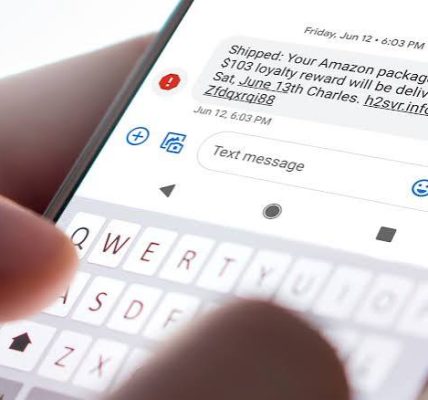
If the message came through text or a direct message rather than email, I would still check for the same damage pattern. The delivery channel changes; the cleanup does not.
If your browser offered to save the password after the fake login, clear the stored credential from the browser and from any synced password vault you use. Saved credentials can outlive the mistake.
Here is the short version of the edge cases:
- Situation: email account phished → what changes: inbox rules and recovery paths matter most → what to do instead: secure email first, then reset everything linked to it.
- Situation: password manager phished → what changes: one compromise can expose many accounts → what to do instead: lock the manager, sign out synced devices, then rotate critical passwords.
- Situation: work SSO phished → what changes: session tokens may still work → what to do instead: tell IT, revoke sessions, and follow their incident steps.
- Situation: browser saved the password → what changes: local credential storage may be exposed → what to do instead: remove saved logins and review synced devices.
- Situation: mobile tap with no typing → what changes: lower credential risk, but app installs and permission grants still matter → what to do instead: inspect for profiles, apps, and account logins.
Quick check: if the phished account is the one that unlocks other accounts, treat it as the priority, not the original link.
What to Watch for Over the Next 72 Hours
If you think the immediate crisis is over, do not stop watching too early. A phishing attack often shows up later as a password reset, a bank transfer, a new device sign-in, or a fake help-desk call.
For the next three days, I would watch for:
- Password reset emails you did not request
- New login alerts from unfamiliar locations or devices
- Mailbox forwarding changes
- Sent messages you did not write
- Banking or card activity you do not recognize
- Recovery email or phone changes
- Requests from coworkers, friends, or customers asking about strange messages from you
Set calendar reminders if you need to. Check the login history on your main accounts. Review bank and card alerts. If the account was work-related, keep an eye on whether colleagues receive strange messages that appear to come from you.
If your provider offers account activity dashboards, use them. Google, Microsoft, Apple, and most banks have some form of recent activity or device list. The exact labels differ, but the idea is the same: look for sessions you do not recognize, then revoke them.
One trade-off here: over-checking can make people freeze. Under-checking lets attackers linger. I prefer a short, scheduled review: now, again tonight, and again in a day or two.
Quick check: if you have not looked at recent logins, recovery settings, and bank alerts since the click, you are not done yet.
FAQ
Do I need to change every password I own?
No. Start with the account touched by the phishing link, then any account that reused the same password or could be reset through that account. If your email was compromised, widen the net.
If I only clicked and never typed anything, am I safe?
No, not automatically, but the risk is usually lower. Check for downloads, account alerts, and strange browser behavior. If you only landed on a page and left, that is better than submitting credentials.
Should I tell my bank?
If the phishing page asked for bank credentials, card details, or identity information, yes. If you already see suspicious transactions, call the bank immediately using the number on the back of the card or the official website.
Should I report it to the sender?
No. If the sender was spoofed, they may not even know. If it was a real compromised contact, replying can expose more information and does not help cleanup. Report it through the proper channel instead.
Is it worth filing a report anywhere official?
Yes, if money, identity theft, or a work account is involved. In the U.S., the FTC and CISA are useful starting points. If this is a workplace incident, follow your company’s security reporting process first.
Quick check: if you still have a live login, a bank risk, or a work account risk, use the FAQ answers as your final safety pass, not your starting point.